Most grocery lists fail for the same three reasons: the items are vague (“chicken”, “snacks”), they are written in the order you remembered them rather than the order the store is laid out, and nobody checks the total until the cashier does. The result is a second trip for the thing you forgot, a cart full of extras, and food that spoils before anyone eats it.
This guide walks you through a simple, repeatable method for making a grocery list that fixes all three problems. Each step comes with a real example built in our free Grocery List Maker, so you can follow along — or just borrow the method and use pen and paper.
How to Make a Grocery List in 7 Steps
Here is the short version. Each step is explained in detail below.
- Plan your meals for the days you will actually cook.
- Shop your kitchen first — check the fridge, freezer and pantry.
- Write items the way you will buy them, with quantity, unit and size.
- Organize the list by store aisle so you walk the store once.
- Set a budget and estimate the prices of your biggest items.
- Shop in one pass, checking items off as they go into the cart.
- Share the list and reset it for next week.
Why a Good Grocery List Matters
A list is the cheapest money-saving tool you own. It keeps impulse buys out of the cart, prevents the “we already had three jars of that” moment, and saves the extra trip for the one ingredient you forgot. It also cuts food waste: the USDA estimates that food waste in the United States amounts to 30–40% of the food supply, and buying without a plan is one of the easiest ways for groceries to end up in the trash.
A good list is not just a reminder. It is a small plan: what you will cook, what you already have, where each item is in the store and how much the trip should cost.
Step 1: Plan Your Meals for the Week
Start with meals, not items. Decide how many dinners you will really cook this week — for most households that is three to five, with leftovers or an easy night filling the gaps. Then pick dishes that share ingredients, so nothing is bought for a single use. Bell peppers that go into fajitas on Monday can go into a stir-fry on Wednesday; one bag of rice covers two meals.
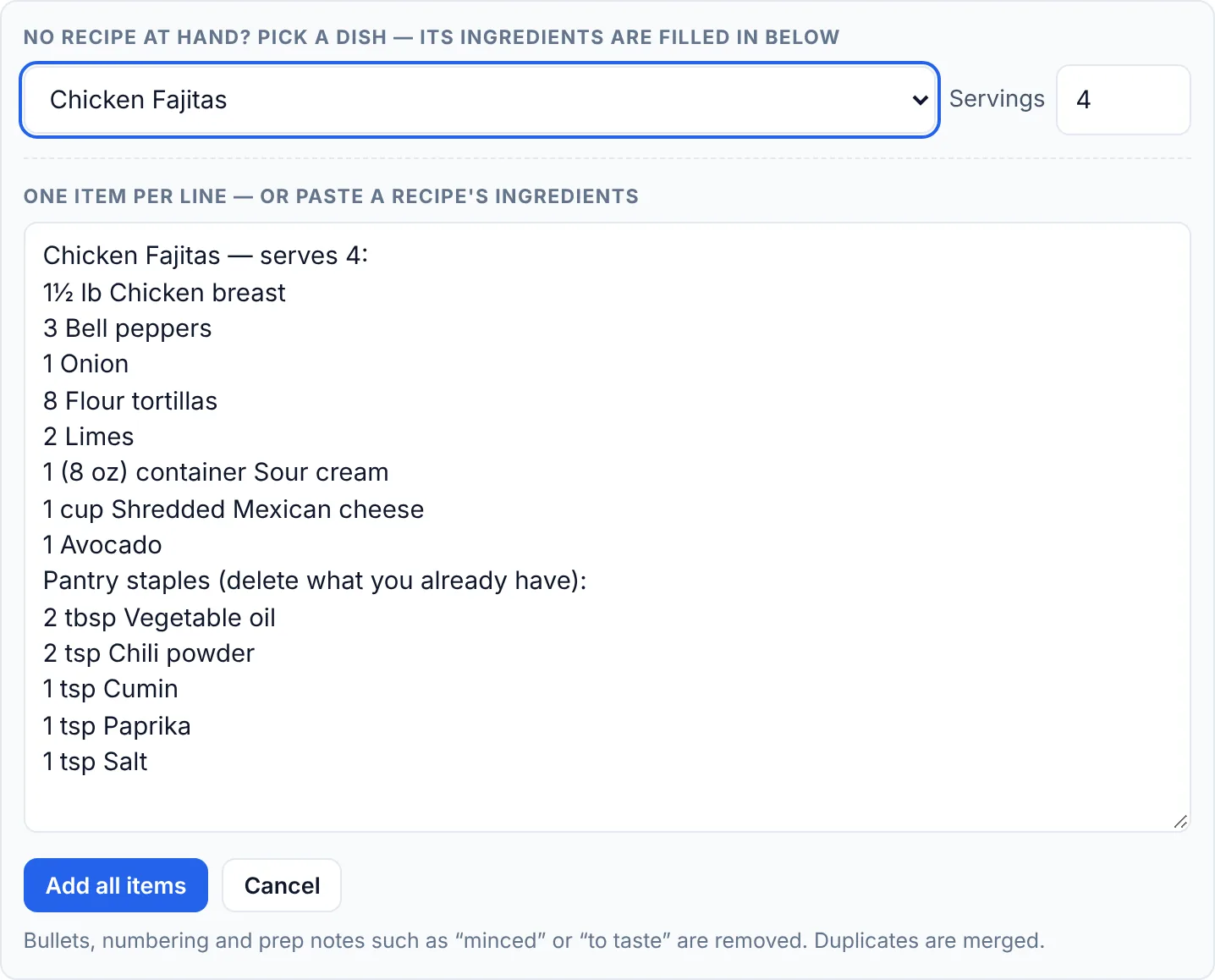
If you know what you want to cook but not exactly what to buy, open the Grocery List Maker, tap 🍳 Ingredients for a dish and choose a meal from the list of 54 popular dishes. Set the number of servings and the ingredients appear, already scaled and rounded to amounts you can buy — whole onions and cans, quarter steps for pounds and cups.
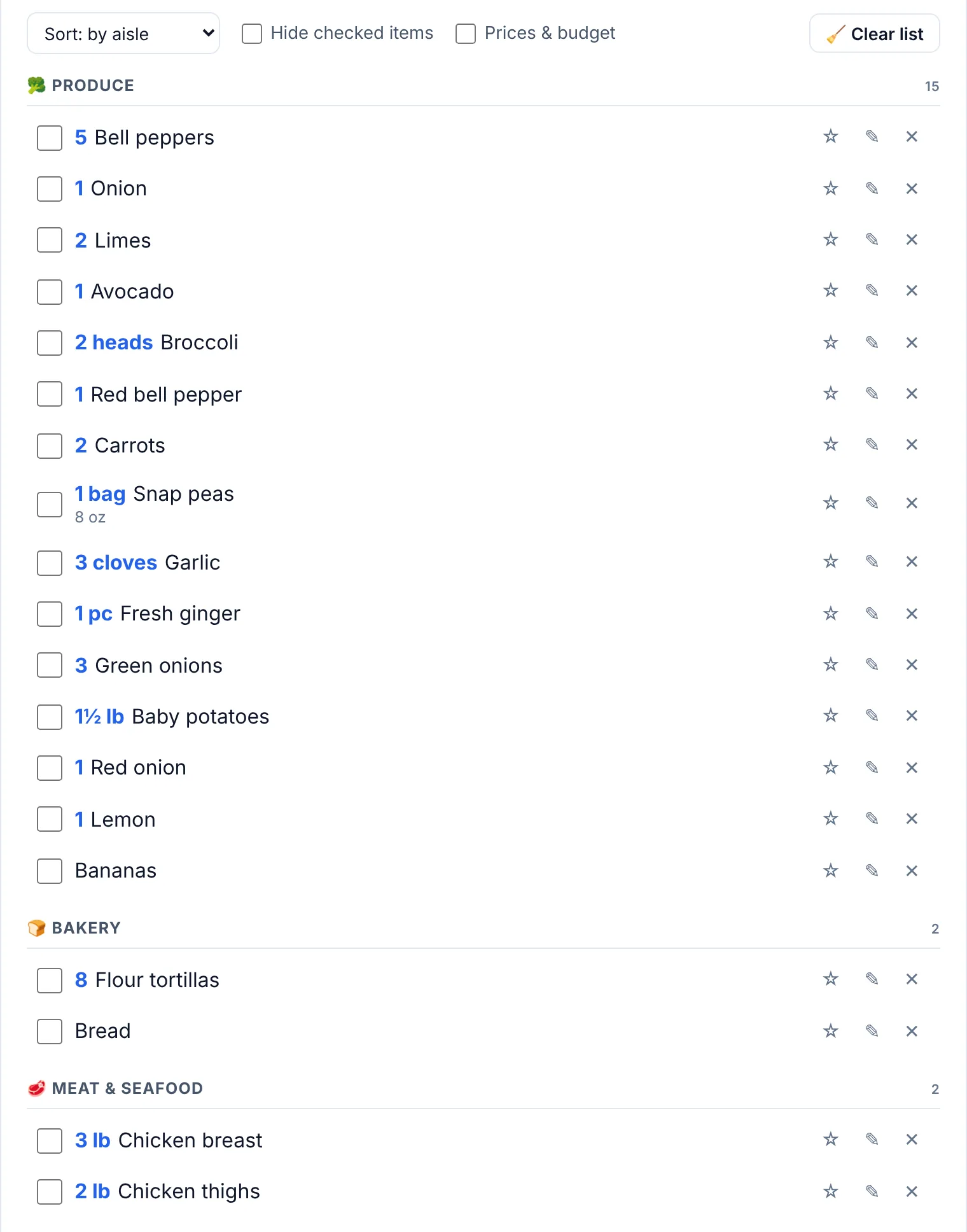
In our example we planned three dinners for a family of four: Chicken Fajitas, Chicken Stir-Fry and Sheet Pan Chicken & Vegetables. Because the tool merges duplicates, the shared ingredients collapse into single lines — 1½ lb of chicken breast from each of the first two dishes becomes 3 lb Chicken breast, and the peppers from two recipes become 5 Bell peppers. That is exactly the number you need at the store, not three separate reminders.
Tip: plan one “use it up” meal per week — a soup, fried rice or a frittata — to finish vegetables and leftovers before they spoil.
Step 2: Shop Your Kitchen Before You Shop the Store
Before adding anything else, spend five minutes checking what you already have. Go in this order:
- Fridge — what needs to be used in the next few days? Build a meal around it instead of buying more.
- Freezer — meat, bread and vegetables you forgot about can replace items on the list.
- Pantry — spices, oils, rice, pasta and canned goods are the items most often bought twice.
When you add a dish in the Grocery List Maker, salt, oil, flour and spices appear under a “Pantry staples (delete what you already have)” heading. Delete the lines you have at home before you tap Add all items, and your list only contains what is genuinely missing.
For things you buy every week — milk, eggs, coffee, bread — tap the ☆ next to the item to save it as a staple. Next week they appear under Quick add, and Add all staples puts them back on the list in one tap.
Not sure if something in the fridge is still good? The USDA’s FoodKeeper lists recommended storage times for the refrigerator, freezer and pantry.
Step 3: Write Items the Way You Will Buy Them
“Tomatoes” is a reminder. “1 (28 oz) can crushed tomatoes” is a shopping instruction. The more specific each line is, the less time you spend standing in front of the shelf guessing. A useful line has three parts:
- Quantity — 2, 1½, a dozen.
- Unit or package — lb, oz, can, jar, bag, bunch, head.
- The item, plus a note when it matters — brand, size, “ripe”, “on sale”.
You do not need a special format. The Grocery List Maker reads quantities the way people write them — “2 lb chicken breast”, “milk x2”, “1½ cups flour”, “a dozen eggs” — and you can separate several items with commas. For brand or size details, tap ✎ and use the Note field.
Turn a recipe from any website into a clean list
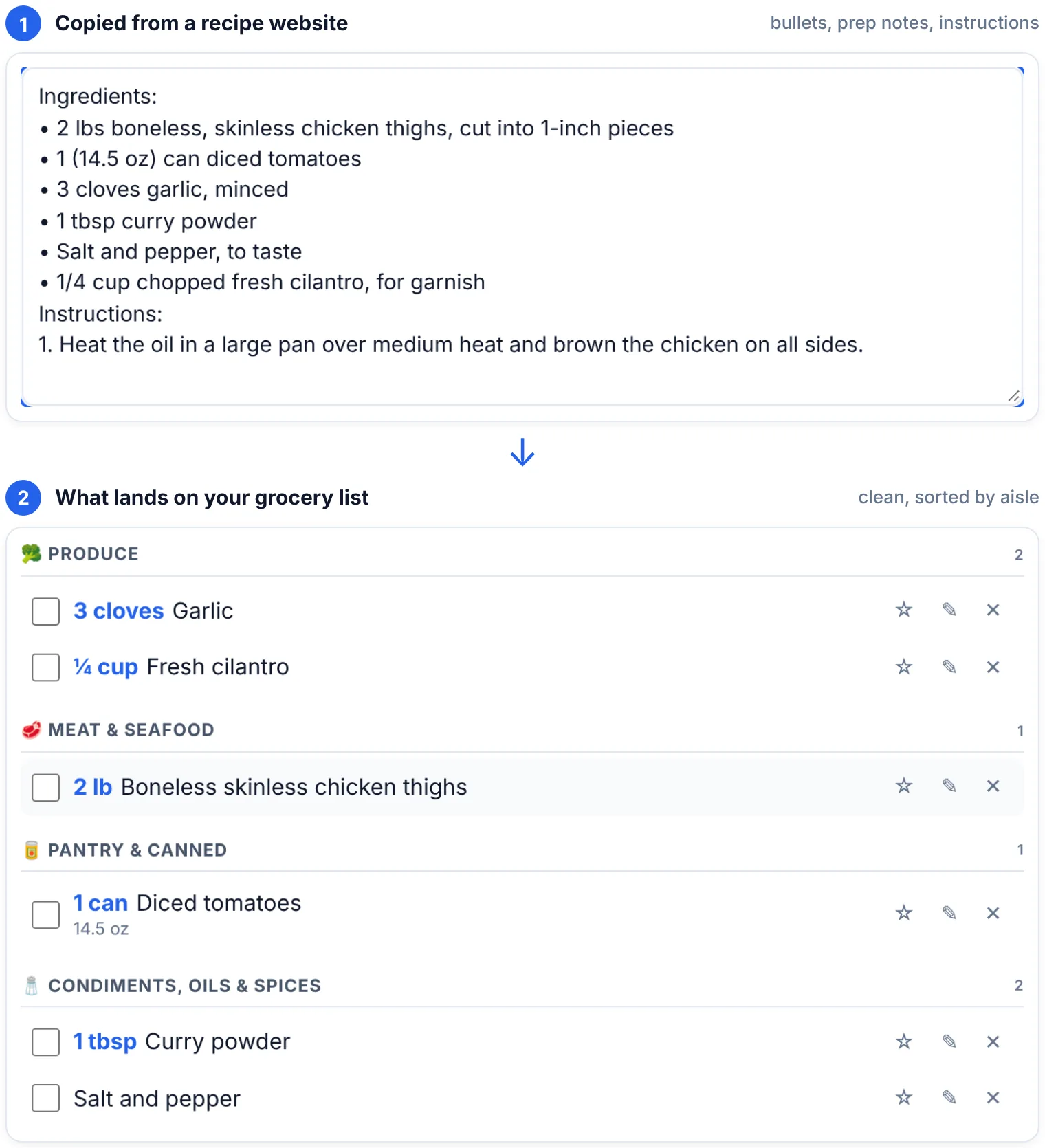
Recipe ingredient lists are full of things you do not need at the store: bullets, “minced”, “for garnish”, “to taste” and sometimes the first cooking instruction. Paste the whole block into 📋 Paste a list or recipe and the tool strips that noise, keeps the quantities and package sizes, skips instruction lines and sorts what is left by aisle.
Short on time? On browsers that support speech recognition, tap 🎙️ and say your items, separated by “and” — “milk, a dozen eggs and two pounds of chicken”.
Step 4: Organize Your Grocery List by Store Aisle
A list written in random order sends you back and forth across the store: produce, then the back wall for milk, then produce again for the lemon you skipped. Grouping the list by section means you finish each area before moving on, which is faster and makes it much harder to forget something.
The Grocery List Maker does the grouping for you. Every item is placed into one of 16 aisles — Produce, Bakery, Meat & Seafood, Dairy & Eggs, Frozen, Pantry & Canned and so on — as soon as you add it.
Match the aisle order to your store
Every store is different. In many supermarkets fresh produce is near the entrance and dairy runs along a back wall, but your store may put the bakery first or frozen foods right by the checkout. Walk your usual route once in your head, then open Lists, aisle order & backup and use the ↑ ↓ buttons to put the aisles in that order. The list, the printout and the text you share all follow it.
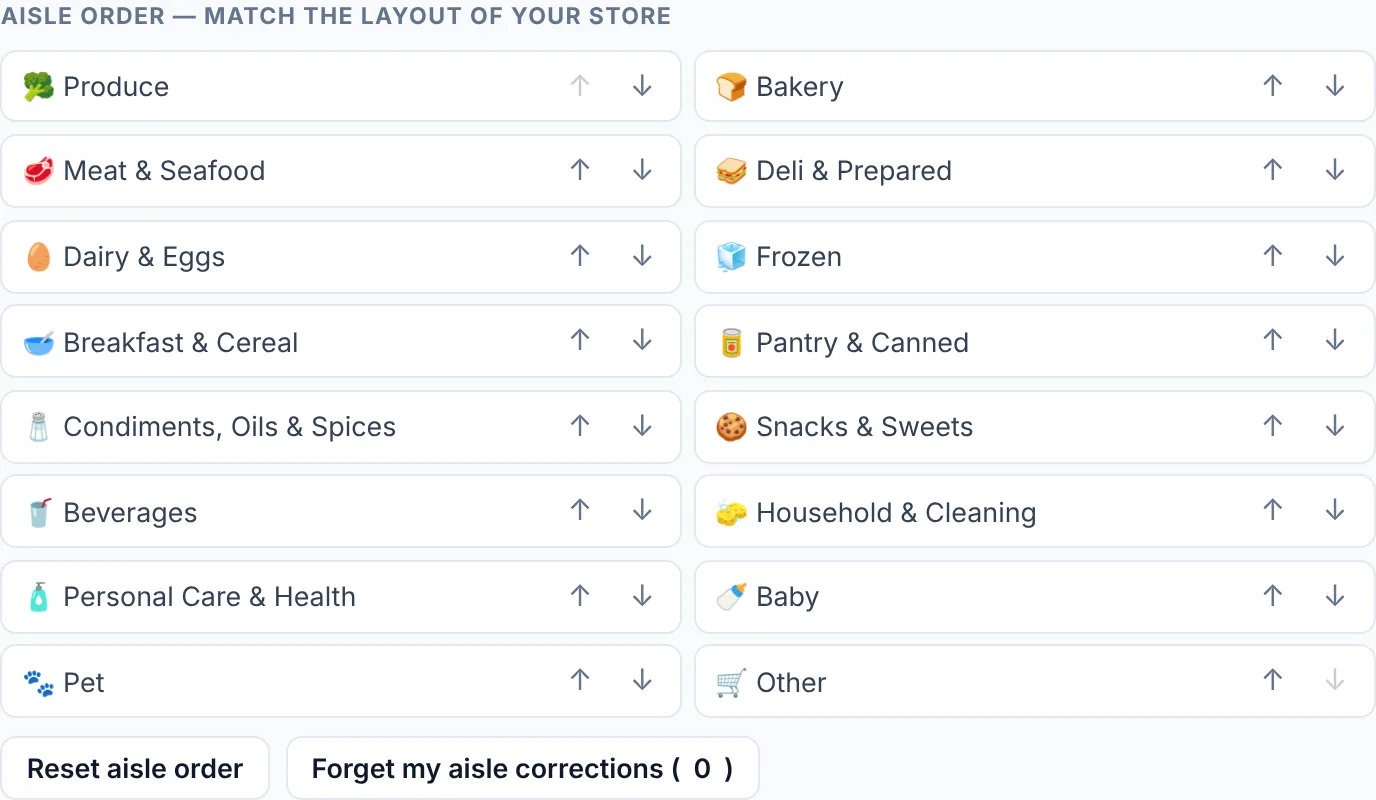
If an item lands in a section that does not match your store — say your shop keeps tortillas with the pantry goods rather than the bakery — tap ✎, choose a different aisle and save. The tool remembers that choice for the item from then on.
Step 5: Set a Budget and Estimate Prices
You do not need to price every item to stay on budget. A few large items usually make up most of the bill, so price those and ignore the small stuff:
- Look at last week’s receipt or the store’s app and find the 5–10 most expensive lines — usually meat, fish, coffee, cheese and household goods.
- Turn on Prices & budget, tap ✎ on those items and enter what you expect to pay for the whole line.
- Enter a Budget for this list.
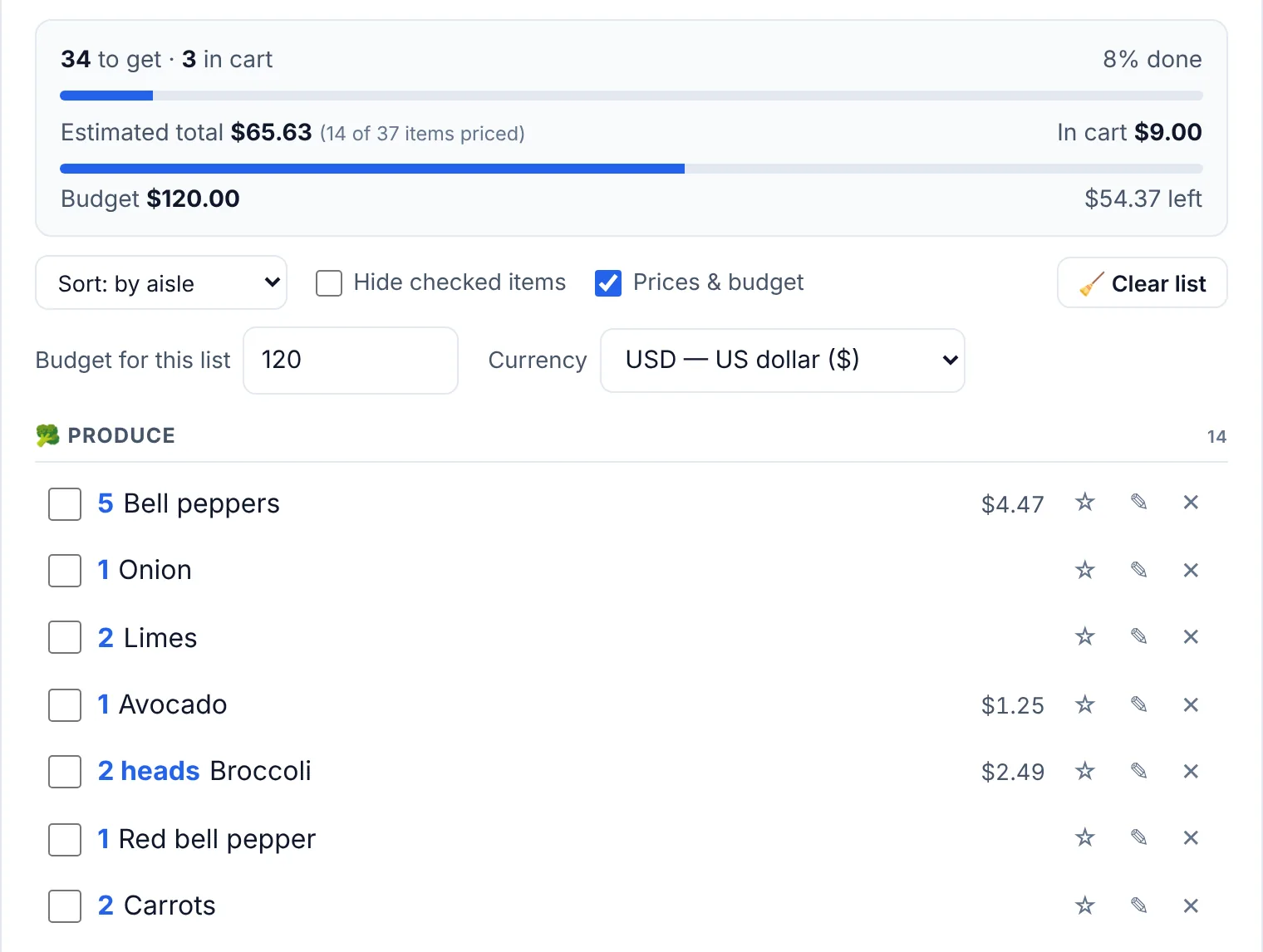
The budget bar turns amber when the estimate reaches 85% of your budget and red when you go over — a signal to swap an expensive cut of meat or skip a non-essential before you reach the register. Prices are remembered too: the next time you add the same item with the same quantity and unit, its last price is filled in automatically, so your estimates get more accurate every week.
Not sure what a realistic budget is? The USDA publishes monthly Food Plans: Cost of Food reports at four cost levels (Thrifty, Low-Cost, Moderate-Cost and Liberal), which you can use as a reference for your household size.
Small habits that lower the total
- Compare unit prices on the shelf tag (price per ounce or per pound), not package prices.
- Choose flexible ingredients — a whole bag of carrots that goes into three meals beats a specialty item used once.
- Try the store brand for pantry basics like flour, canned tomatoes, rice and spices.
- Plan around what is on sale, then fill the rest of the week from your pantry.
Step 6: Shop in One Pass
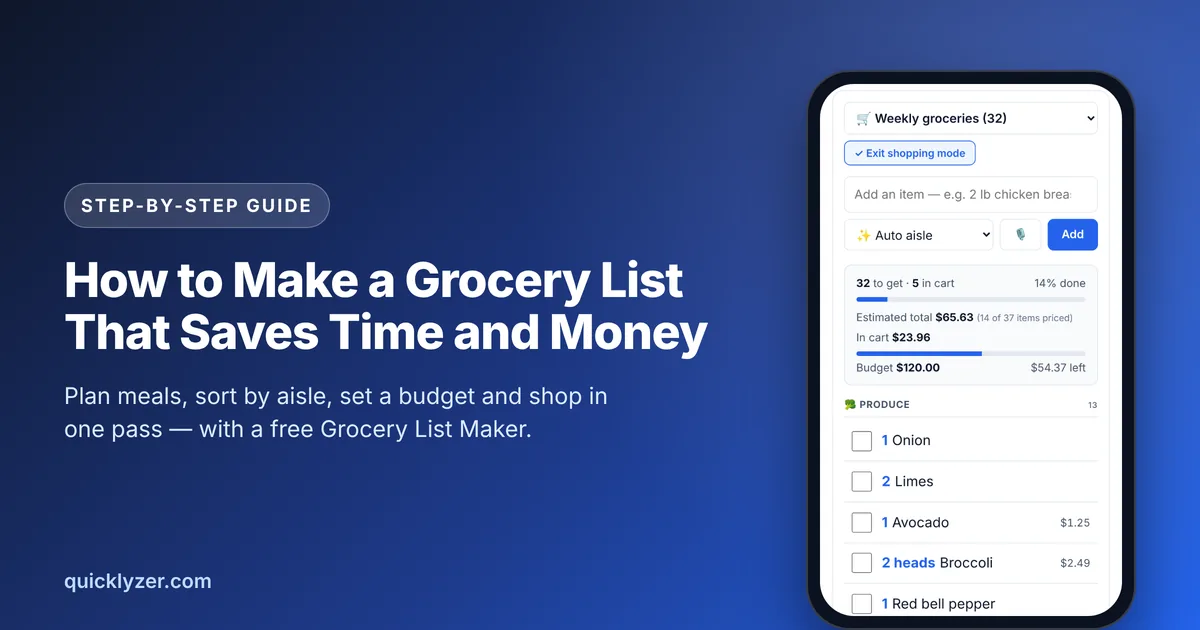
At the store, your list should be easy to read with one hand on the cart. On your phone, tap 🛒 Shopping mode: rows and checkboxes get bigger, editing buttons disappear and one tap moves an item into the in cart section. In browsers that support it, your screen stays on while shopping mode is active, so it does not lock between aisles.
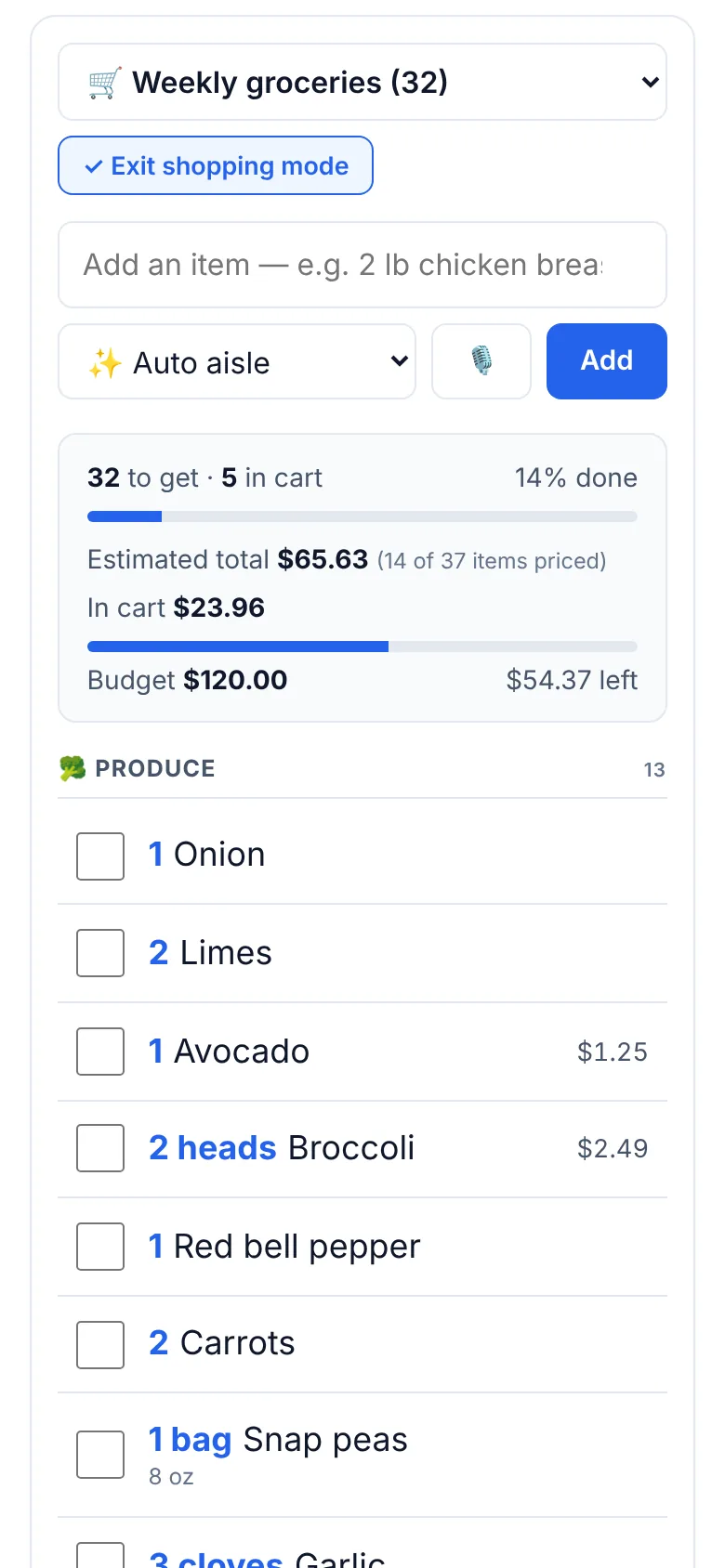
Remembered something in the store? The add box stays available in shopping mode, and the new item drops straight into the right aisle.
Prefer paper? Print it
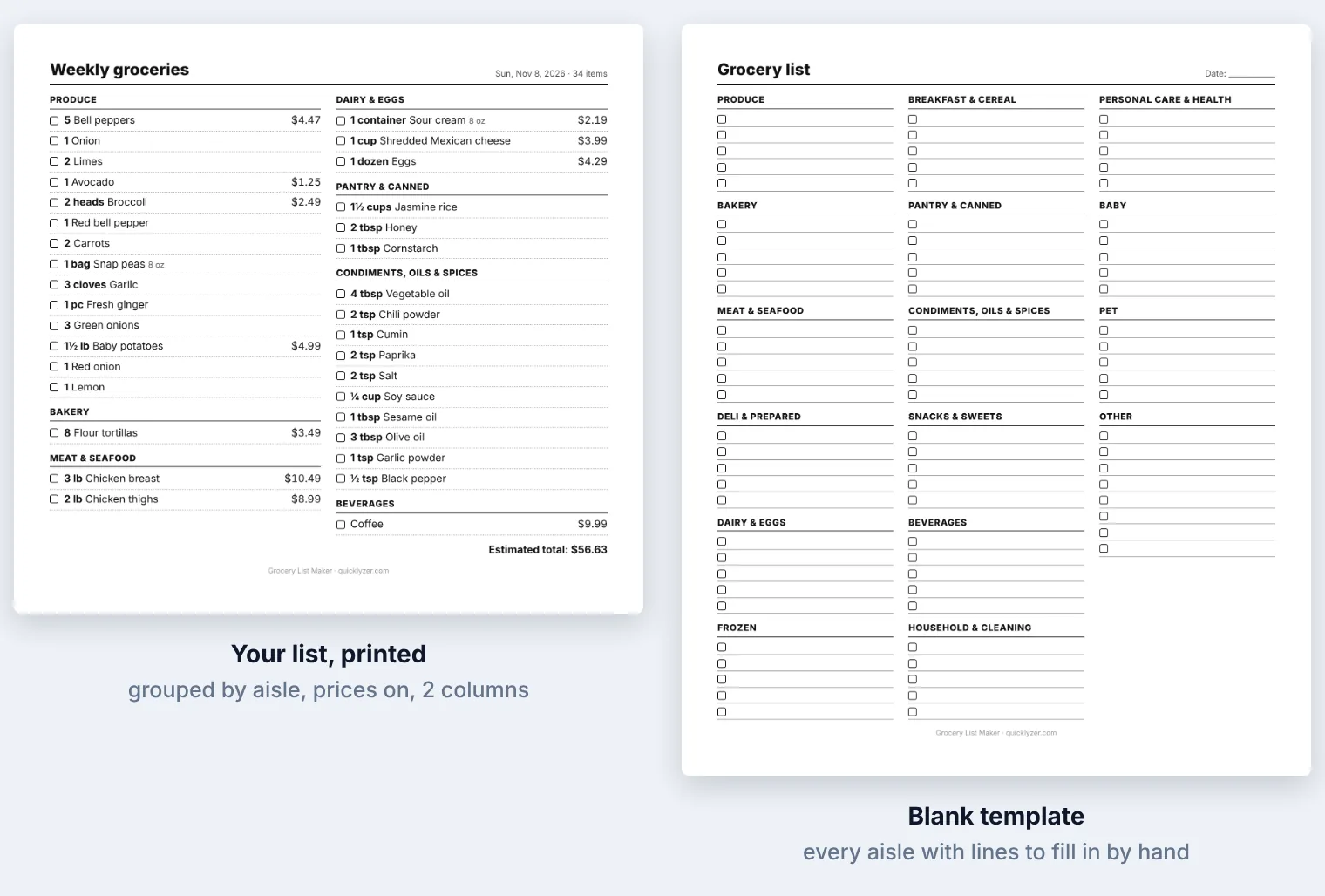
Some people simply shop faster with a paper list — and kids can help by checking boxes. Print / Save as PDF prints only the list, grouped by aisle with a checkbox in front of every item. In Print & export options you can choose one, two or three columns, add blank lines for last-minute items and show prices with the estimated total. For the fridge door, Print a blank template gives you an empty grocery list with every aisle heading, so the whole household can write items down as they run out.
Step 7: Share the List and Reset It for Next Week
If someone else is doing the shopping — or you are splitting it — send them the list instead of reading it out over the phone:
- Share link copies a link that contains the whole list. The other person opens it and saves a copy with one tap. It is a snapshot, so send a new link if the list changes.
- Copy as text creates a clean checklist with ☐ boxes and aisle headings for WhatsApp, iMessage, email or Notes.
- Splitting the shop? Use Duplicate list, then each person deletes what the other is buying.
After the trip, tap Remove checked to clear what you bought and keep what is still missing, or 🧹 Clear list to start fresh. Your staples are waiting under Quick add, so next week’s list starts with the basics already done. Lists are saved in your browser, so they are still there tomorrow; use Export backup if you want to move them to another device.
Grocery List Examples for Common Situations
Use these combinations as a starting point. Every template and dish mentioned is built into the tool.
| Situation | Start with | Then add |
|---|---|---|
| Weekly family shop | Weekly essentials template | 3–4 dinners from the dish list, e.g. Beef Tacos, Chicken Curry and Baked Mac and Cheese |
| Thanksgiving for 12 | Roast Turkey (serves 12) | Mashed Potatoes, Green Bean Casserole and Classic Stuffing set to 12 servings, plus Pumpkin Pie |
| Cooking for one or two | Any dish with servings set to 1 or 2 | Pick dishes that freeze well, such as Beef Chili or Vegetable Soup, and keep a portion for later |
| Tight-budget week | Pantry restock template (delete what you have) | Low-cost dinners like Egg Fried Rice, Vegetable Soup and Overnight Oats for breakfast |
| Summer cookout | BBQ & cookout template | Potato Salad and Creamy Coleslaw scaled to your guest count |
| New baby at home | Baby & toddler template | Freezer-friendly meals and the Cleaning & household template |
When you scale a holiday menu, the rounding works in your favor: ingredient amounts are rounded up to whole cans, packs and vegetables, so you are never half an onion short on the big day.
Common Grocery List Mistakes (and Quick Fixes)
| Mistake | Why it costs you | Quick fix |
|---|---|---|
| Vague items (“meat”, “snacks”) | You decide in the aisle, where packaging and promotions decide for you | Write quantity, unit and item: “2 lb chicken thighs” |
| Listing per recipe | The same ingredient appears three times and gets bought three times | Combine duplicates into one line before you shop |
| Skipping the pantry check | Spices, oils and canned goods pile up at home | Delete pantry staples you already have before adding a recipe |
| Random order | Backtracking through the store and missed items | Group items by aisle in your store’s order |
| No budget | The total is a surprise at the register | Price your 5–10 biggest items and set a budget |
| Starting from zero every week | Basics like milk or coffee get forgotten | Save them as staples and add them in one tap |
The 15-Minute Weekly Grocery List Routine
Put the whole method together once a week — Sunday afternoon works for many people — and it takes about a quarter of an hour:
- Minutes 1–5: pick 3–5 dinners and add them with Ingredients for a dish or by pasting your own recipes.
- Minutes 5–8: check the fridge, freezer and pantry; delete what you already have.
- Minutes 8–10: tap Add all staples and add anything else the household needs.
- Minutes 10–13: price the biggest items and check the budget bar.
- Minutes 13–15: share the list or print it, then go shopping in one pass.
Frequently Asked Questions
How often should I make a grocery list?
Once a week suits most households: it is long enough to plan meals around shared ingredients and short enough that fresh produce does not spoil. Keep the list open during the week and add items the moment they run out, so the weekly plan only has to cover meals.
Should I organize my grocery list by recipe or by aisle?
Plan by recipe, shop by aisle. Recipes tell you what to buy; the aisle order tells you where to find it. Combining duplicate ingredients across recipes before you shop is the step that saves the most money.
Is a paper or digital grocery list better?
Both work if the list is specific and organized. A digital list is easier to share, update and reuse next week; paper is faster to scan and works without a phone. Many people use both: a printable blank template on the fridge for everyone to write on, and a digital list for the shop itself.
How do I make a grocery list on a tight budget?
Start from what you already have, plan meals that share ingredients, choose low-cost dishes such as soups, rice dishes and beans, and set a budget before you leave. Pricing only the most expensive items is usually enough to keep the total under control.
What should be on a basic grocery list?
A basic weekly list usually covers milk, eggs, bread, butter, fruit, a few vegetables, a protein such as chicken or ground beef, rice or pasta, coffee or tea, and household basics like toilet paper and dish soap. The Weekly essentials template in the Grocery List Maker is a ready-made version you can edit.
Make Your Next Grocery List in Minutes
You do not need an app or an account to shop smarter. Open the free Grocery List Maker, pick this week’s dinners, delete what you already have and let the list sort itself by aisle. Your lists stay in your browser, ready for next week.